EEG Lab: Difference between revisions
mNo edit summary |
|||
| (One intermediate revision by one other user not shown) | |||
| Line 5: | Line 5: | ||
| caption = | | caption = | ||
| manuals = {{bulleted list | | manuals = {{bulleted list | ||
| | | {{Download link|media=EEG Lab Setup.jpg|EEG Lab Setup Scheme|jpg}} | ||
| | | {{Download link|media=actiCap_32Ch_DCC_customized.pdf|actiCap 32Ch. DCC cap configuration|pdf}} | ||
| | | {{Download link|media=actiCap_64Ch_DCC_customized.pdf|actiCap 64Ch. DCC cap configuration|pdf}} | ||
| | | {{Download link|media=actiCap_96Ch_DCC_customized.pdf|actiCap 96Ch. DCC cap configuration|pdf}} | ||
| | | {{Download link|media=EEG_lab_user_guide.pdf|EEG lab user guide|pdf}} | ||
| | | {{Download link|media=Cleaningprocedure_EEG.pdf|EEG cleaning protocol|pdf}} | ||
}} | }} | ||
| Line 26: | Line 26: | ||
==Usage== | ==Usage== | ||
* | *{{Download link|media=EEG_lab_user_guide.pdf|EEG lab user guide|pdf}} | ||
* | *{{Download link|media=Cleaningprocedure_EEG.pdf|EEG cleaning protocol|pdf}} | ||
{{See_also|Brainvision}} | {{See_also|Brainvision}} | ||
| Line 38: | Line 38: | ||
|- | |- | ||
!Cubicle 01.307 | !Cubicle 01.307 | ||
| | |C039421 | ||
|131.174.127. | |131.174.127.138 | ||
|- | |- | ||
!Cubicle 01.308 | !Cubicle 01.308 | ||
| | |C039424 | ||
|131.174.127. | |131.174.127.60 | ||
|- | |- | ||
!Cubicle 01.309 | !Cubicle 01.309 | ||
| | |C039423 | ||
|131.174.127. | |131.174.127.67 | ||
|- | |- | ||
!Cubicle 01.310 | !Cubicle 01.310 | ||
| | |C039422 | ||
|131.174.127. | |131.174.127.97 | ||
|- | |- | ||
|} | |} | ||
Cubicle 01.307 | Cubicle 01.307 C039421 131.174.127.138 | ||
Cubicle 01.308 | Cubicle 01.308 C039424 131.174.127.60 | ||
Cubicle 01.309 | Cubicle 01.309 C039423 131.174.127.67 | ||
Cubicle 01.310 | Cubicle 01.310 C039422 131.174.127.97 | ||
If you work from home, EduVPN is required. In EduVPN, choose the Institute Access option. | If you work from home, EduVPN is required. In EduVPN, choose the Institute Access option. | ||
Once the connection is set up, you can open Remote desktop. In Windows, look for the following: Remote Desktop Connection. Enter the IP address which corresponds to the number on the grey sticker. (or the c-number on the grey sticker, followed by .srw.ru.nl e.g.: | Once the connection is set up, you can open Remote desktop. In Windows, look for the following: Remote Desktop Connection. Enter the IP address which corresponds to the number on the grey sticker. (or the c-number on the grey sticker, followed by .srw.ru.nl e.g.:C039421.srw.ru.nl). When you are asked for your login details, please enter your U/E/S number and your ru password. | ||
=== Cap Configuration === | === Cap Configuration === | ||
* | *{{Download link|media=actiCap_32Ch_DCC_customized.pdf|actiCap 32Ch. DCC cap configuration|pdf}} | ||
* | *{{Download link|media=actiCap_64Ch_DCC_customized.pdf|actiCap 64Ch. DCC cap configuration|pdf}} | ||
* | *{{Download link|media=actiCap_96Ch_DCC_customized.pdf|actiCap 96Ch. DCC cap configuration|pdf}} | ||
* | *{{Download link|media=ActiCAP_64Channel_3Dlayout.docx| 3D sensor 64Ch. DCC cap configuration|docx}} | ||
* A fieldtrip lay out matlab file of the customized DCC lay out is available via [https://intranet.donders.ru.nl/index.php?id=5028 DCC intranet]. | * A fieldtrip lay out matlab file of the customized DCC lay out is available via [https://intranet.donders.ru.nl/index.php?id=5028 DCC intranet]. | ||
Latest revision as of 12:25, 10 August 2026
 | This page is outdated. Some or all of the information on this page may no longer apply. |
| Manuals | |
|---|---|
|
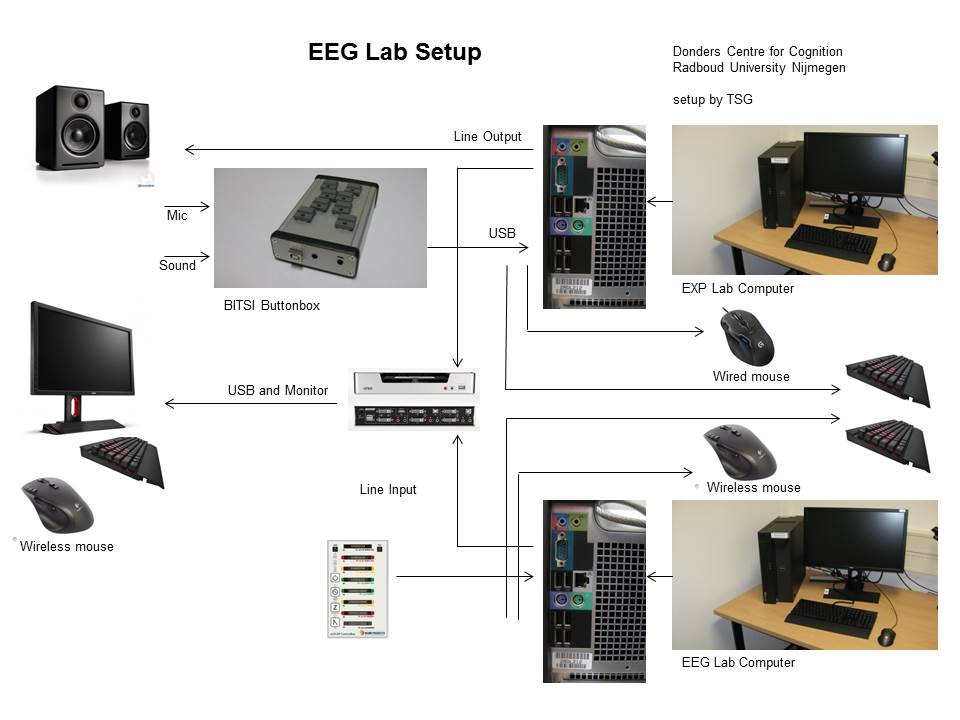
Equipment
- Lab Computer
- Monitor
- Keyboard
- Mouse
- AudioEngine A2 Speakers
- EEG equipment
Usage
- ⬇️EEG lab user guide (pdf)
- ⬇️EEG cleaning protocol (pdf)
Analyzer lab (cubicle)
To be able to log in remotely to the analysis computers, you must physically log in to the computer the first time. To do this, book a cubicle that is free. Log in to the computer that is there with your U/E/S number. Then you can log out again. On the computer there is a gray sticker with a number that starts with C, remember this number!
| Cubicle 01.307 | C039421 | 131.174.127.138 |
|---|---|---|
| Cubicle 01.308 | C039424 | 131.174.127.60 |
| Cubicle 01.309 | C039423 | 131.174.127.67 |
| Cubicle 01.310 | C039422 | 131.174.127.97 |
Cubicle 01.307 C039421 131.174.127.138 Cubicle 01.308 C039424 131.174.127.60 Cubicle 01.309 C039423 131.174.127.67 Cubicle 01.310 C039422 131.174.127.97
If you work from home, EduVPN is required. In EduVPN, choose the Institute Access option.
Once the connection is set up, you can open Remote desktop. In Windows, look for the following: Remote Desktop Connection. Enter the IP address which corresponds to the number on the grey sticker. (or the c-number on the grey sticker, followed by .srw.ru.nl e.g.:C039421.srw.ru.nl). When you are asked for your login details, please enter your U/E/S number and your ru password.
Cap Configuration
- ⬇️actiCap 32Ch. DCC cap configuration (pdf)
- ⬇️actiCap 64Ch. DCC cap configuration (pdf)
- ⬇️actiCap 96Ch. DCC cap configuration (pdf)
- ⬇️ 3D sensor 64Ch. DCC cap configuration (docx)
- A fieldtrip lay out matlab file of the customized DCC lay out is available via DCC intranet.
Display Settings
By default the primary display and secondary display are cloned.
Monitor: BenQ XL2420Z Refresh Rate: 120hz Resolution: 1920*1080 (1080p) Color depth: 32bit Display Configuration: Display 2 cloned with Display 1