Difference between revisions of "JoySticks"
Jump to navigation
Jump to search
| Line 67: | Line 67: | ||
# Download the [[media:dx7dll.zip | dx7vb.dll file]]. | # Download the [[media:dx7dll.zip | dx7vb.dll file]]. | ||
| − | # Extract the zip and copy the .dll file into the following folder: < | + | # Extract the zip and copy the .dll file into the following folder: <tt>C:\Windows\System32</tt> |
# Open the Windows Command Prompt with Administrator rights. | # Open the Windows Command Prompt with Administrator rights. | ||
# Register the DLL file by executing the following command:<br /> <code>C:\Windows\System32\regsvr32 dx7vb.dll</code> | # Register the DLL file by executing the following command:<br /> <code>C:\Windows\System32\regsvr32 dx7vb.dll</code> | ||
| Line 76: | Line 76: | ||
# Download the [[media:dx7dll.zip | dx7vb.dll file]]. | # Download the [[media:dx7dll.zip | dx7vb.dll file]]. | ||
| − | # Extract the zip and copy the .dll file into the following folder: < | + | # Extract the zip and copy the .dll file into the following folder: <tt>C:\Windows\SysWow64</tt> |
# Open the Windows Command Prompt with Administrator rights. | # Open the Windows Command Prompt with Administrator rights. | ||
# Register the DLL file by executing the following command:<br /> <code>C:\Windows\SysWow64\regsvr32 dx7vb.dll</code> | # Register the DLL file by executing the following command:<br /> <code>C:\Windows\SysWow64\regsvr32 dx7vb.dll</code> | ||
# When done correctly, you should see the following message:<br /><br />[[file:regsvr32.jpg]] | # When done correctly, you should see the following message:<br /><br />[[file:regsvr32.jpg]] | ||
Revision as of 11:29, 8 April 2015
Red Joystick

Settings
The Red Joystick can be connected to the computer via USB; the device will emulate a serial port. The following COM port settings should be used:
| Baudrate | 115200 |
| Parity | None |
| Data bits | 8 |
| Stop bits | 1 |
| Flow control | None |
| CTS Control | Off |
| DSR Out Control | Off |
| DSR In Control | Off |
| RTS Control | Off |
| Set FIFO Interrupt | Off |
Python
 #!/usr/bin/env python
 from rusocsci import joystick, utils
 import logging, time

 ## Setup Section
 #logging.getLogger().setLevel(logging.DEBUG) # use this for debug info
 #utils.serialList() # get alist of ports with a joystick or buttonbox connected
 j = joystick.Joystick()
 #j = joystick.Joystick(1) # use this to connect to the second joystick
 #j = joystick.Joystick(port="COM1") # use this to connect to a joystick on a specific port

 ## Experiment Section
 for i in range(15):
 print("x: {}".format(j.getX()))
 time.sleep(1)
Logitech Attack 3 Controller

Installation
The Logitech Attack 3 joystick requires a DirectX 7 DLL file to be installed on your computer. If it hasn't been installed yet, please follow the instructions below.
Windows 7 32bit
- Download the dx7vb.dll file.
- Extract the zip and copy the .dll file into the following folder: C:\Windows\System32
- Open the Windows Command Prompt with Administrator rights.
- Register the DLL file by executing the following command:
C:\Windows\System32\regsvr32 dx7vb.dll - When done correctly, you should see the following message:
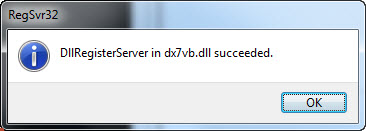

Windows 7 64bit
- Download the dx7vb.dll file.
- Extract the zip and copy the .dll file into the following folder: C:\Windows\SysWow64
- Open the Windows Command Prompt with Administrator rights.
- Register the DLL file by executing the following command:
C:\Windows\SysWow64\regsvr32 dx7vb.dll - When done correctly, you should see the following message: